
Home Channels Mobile

Mobile.

Most brands run push, in-app, and in-line through three different tools, and the user can tell. WebEngage runs all three as one channel.

Notifications / mon

9.4B

Avg app CTR

7.3%
Three touchpoints. The same decisions, made differently.

Switch the artifact, explore the pins.

Tap any pin to open

Tap any pin to open

Tap any pin to open

Tap any pin to open

Three touchpoints. The same decisions, made differently.

Tap any pin to open

Tap any pin to open

Tap any pin to open

Built for Mobile. Backed by the platform.

Set a custom notification sound for your push campaigns, with the default sound as fallback if it's unavailable.

Use Sticky Push to lock a notification on the user's screen so it can't be swiped away. Users must tap an action button to dismiss, ensuring high-priority messages get seen.

Add a live countdown timer to your push notifications to drive urgency. Choose a timer style, set the duration or end time, and customize the color to match your brand.

Create carousel push notifications with up to five swipeable images in landscape or portrait style. Add a CTA label and personalized deep link to each, with optional auto-scroll.

Assign priority levels to your in-app notification campaigns. Set each as Critical, High, Medium, or Low so that when multiple campaigns qualify, the most important one shows first.

Control how in-app campaigns behave per user with lifecycle settings. Define when a cycle ends (on click or views), set active dates, repeat cycles on a schedule, and cap frequency per session.

Measure true campaign impact by holding out users. Choose Universal, Custom, or Campaign-level control groups, then compare held-out users against targeted ones to see the real lift.

Define several conversion events and see how each variation performs against every goal, alongside aggregate conversions and total revenue.

Personalize messages with dynamic fields like name, order ID, and status. Insert placeholders into your template and each recipient sees content tailored to their own data.

Built for Mobile. Backed by the platform.

Mobile Features

Native to this channel

Custom Notification Sounds

Set a custom notification sound for your push campaigns, with the default sound as fallback if it’s unavailable.

Use Sticky Push to lock a notification on the user’s screen so it can’t be swiped away. Users must tap an action button to dismiss, ensuring high-priority messages get seen.

Add a live countdown timer to your push notifications to drive urgency. Choose a timer style, set the duration or end time, and customize the color to match your brand.

Create carousel push notifications with up to five swipeable images in landscape or portrait style. Add a CTA label and personalized deep link to each, with optional auto-scroll.

Assign priority levels to your in-app notification campaigns. Set each as Critical, High, Medium, or Low so that when multiple campaigns qualify, the most important one shows first.

Control how in-app campaigns behave per user with lifecycle settings. Define when a cycle ends (on click or views), set active dates, repeat cycles on a schedule, and cap frequency per session.

Platform Features

Available everywhere relevant to Mobile too

Multi Level Control Group

Measure true campaign impact by holding out users. Choose Universal, Custom, or Campaign-level control groups, then compare held-out users against targeted ones to see the real lift.

Define several conversion events and see how each variation performs against every goal, alongside aggregate conversions and total revenue.

Personalize messages with dynamic fields like name, order ID, and status. Insert placeholders into your template and each recipient sees content tailored to their own data.

What's new for Mobile teams.

WebEngage Is Now Salla Platform Native – Asia’s #1 CEP Joins Hands With GCC’s Largest E-commerce Platform

Salla is one of the largest commerce platforms in the GCC region, built specifically for merchants in the Middle East…

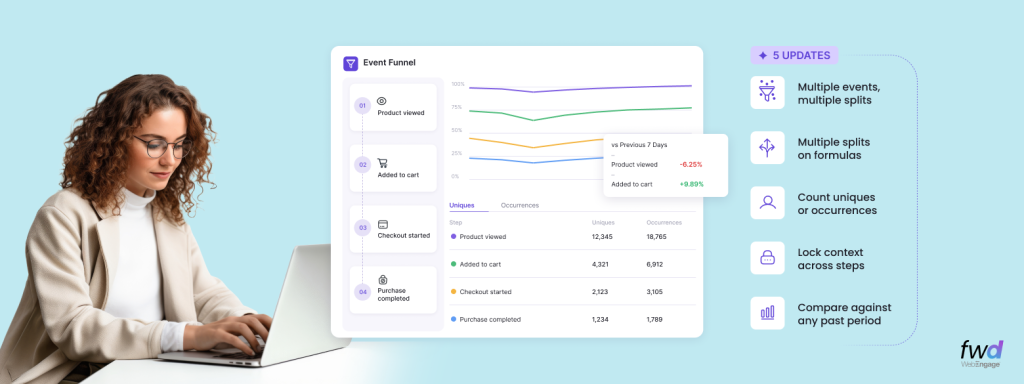
Analytics Digest – Introducing Multi-splits in Event Analytics, Choose Between Uniques/Occurrences In Funnels, Hold Property Constant In Funnels & Compare Funnels Across Time Periods

WebEngage is rapidly becoming the de-facto Analytics toolkit for its customers across product and growth teams. As our usage grows…
See the anatomy of the other six.

The WebEngage channel atlas

See the anatomy of the other six.

The WebEngage channel atlas

Web.

Email.

WhatsApp.

Ads.

SMS.

RCS.

View all channels

FAQs

Push tokens are tied to the SDK that generated them and are not portable, so tokens from your current tool cannot be exported and reused in WebEngage. Once the WebEngage SDK is integrated, tokens are reacquired as users open the app and the SDK registers a fresh Device Registered event. Plan a parallel run with your current tool until token coverage rebuilds so no user goes dark during cutover.
See docs →
Yes, you integrate the WebEngage SDK to send push, since tokens and delivery run through it. For Android you add FCM credentials and for iOS you upload an APNs Auth Key or certificate, then the SDK intercepts token registration automatically. It is a standard app release and can run alongside your existing SDK during the transition.
See docs →
Yes. For Android you upload your Firebase (FCM) service account private key, and for iOS you upload either your APNs Auth Key or APNs Push Certificate from your Apple Developer account. The Auth Key method supports multiple apps and does not require annual regeneration.
See docs →
Yes. Android supports Text, Banner, Big Picture, Carousel (up to five images), Rating, and Timer layouts, plus fully custom layouts via CustomPushRender. Notifications support up to three action buttons with types like deeplink, call, share, copy, snooze, and track event. iOS supports rich push through the WEServiceExtension and WEContentExtension with predefined button pairs.
See docs →
Yes. Silent push delivers a hidden payload to the app without user-facing UI, used to trigger background work such as content downloads. WebEngage also uses a daily silent notification internally to detect app uninstalls.
See docs →
The SDK automatically intercepts token registration on both platforms, so refreshed tokens are captured without extra work. Uninstalls are detected by sending a silent notification with an empty payload to all registered devices once a day, and any device that cannot be reached is marked uninstalled. FCM delivery failures due to app deletion also register as uninstalls.
See docs →
Yes, and this is the recommended path for push specifically because tokens are not portable. Running both SDKs lets you keep sending from your current tool while the WebEngage SDK reacquires tokens as users open the app, so reach is maintained until coverage rebuilds. Once coverage is sufficient you cut over fully to WebEngage.
See docs →

In-app messaging is delivered through the WebEngage mobile SDK, available for native Android and iOS and for React Native, Flutter, Cordova, Ionic, Xamarin, and Unity. No additional configuration is needed to enable in-app notifications once the SDK is integrated, though implementing screen tracking improves targeting.
See docs →

In-app message creatives do not port between vendors, so you rebuild them in WebEngage. WebEngage provides ready layouts including Classic Modal and Full Screen Modal, plus Custom HTML templates for those layouts, so you can recreate existing designs. Plan this as content re-creation rather than a data migration.
See docs →

You build from ready layout templates such as Classic Modal and Full Screen Modal in the dashboard, and can use Custom HTML templates when you need a bespoke design. So common messages need no code, and full control is available when you want it.
See docs →

WebEngage offers native layout templates like Classic Modal and Full Screen Modal, and also supports Custom HTML templates for those layouts when you want fully custom content. So you can stay native for standard messages and use HTML only where you need it.
See docs →

Yes. You can trigger on user events and target by screen using screen tagging, and attach screen data attributes to show messages based on real-time app state. Combined with user attributes and segments, this lets you place a message on the right screen at the right moment.
See docs →

You tag screens in your app using the SDK, for example screenNavigated to mark the current screen and setScreenData to attach contextual data. WebEngage then uses those screen names and data to decide where and when to render a message.
See docs →

Yes. In-app messages can be personalized using user attributes and event data, so content adapts to the individual viewing it. This uses the same profile and event model that powers your other WebEngage channels.
See docs →

On web, in-line content replaces, prepends, or appends elements on your existing pages, targeted via CSS selectors, so you personalize the page itself rather than showing an overlay. In app, in-line content takes a dedicated space on the app screen and does not interfere with the user continuing to browse.
See docs →

Inline content can be driven by user attributes and behavior, and by product catalogs feeding WebEngage's recommendation engine. You upload catalogs via CSV or XML RSS feed, either as a one-time upload or a periodic sync from Amazon S3, then map fields with item_id as the required key.
See docs →

WebEngage supports personalized recommendations based on each user's behavior, relevant item-to-item recommendations, static recommendations shown to all users, and collections for rule-based curation. You can also supply custom recommendations entirely from your own input.
See docs →

Yes. Custom, or manual, recommendations let you determine results entirely from your own input via CSV upload, with types for static, personalized, and relevant recommendations. This bypasses the AI engine when you want full control, with a limit of five recommendations per item or user.
See docs →

WebEngage supports static recommendations that show fixed suggestions to all users, described as ideal when personalized data is insufficient, and fallback recommendations to ensure users still see relevant items when a primary strategy lacks enough results. Configure these so a user never sees an empty block.
See docs →

WebEngage refreshes the data in its recommendation engine at a periodic interval so personalized and static strategies stay current, and the engine typically returns five items. For catalogs, you can also schedule periodic uploads that sync automatically from Amazon S3.
See docs →

Catalogs and recommendations require access to be enabled, so you contact your Customer Success Manager or support to activate the feature. Confirm availability for your plan during evaluation rather than assuming it is on by default.
See docs →

Web in-line campaigns identify the element to change using a CSS selector you take from your page, and let you replace, prepend, or append content. You target by user attributes, behavior, technology, and page URL or path, and can schedule visibility by day and hour.
See docs →

Stop treating push, in-app, and 
in-line as three separate tools.

platform

Platform

Zero PII

No personal data stored.

AI-Powered

Atlas AI

AI-powered customer engagement suite.

Capabilities

Customer Data Platform

Your schema, your engagement rules

Automation

Automate workflows, orchestrate growth

Segmentation

Precise user segmentation, simplified

Personalization

Smarter web and app personalization

Analytics

Deeper analytics, sharper decisions

Recommendations

Context-aware recommendations that sell

Solutions

Travel & Hospitality

Healthcare

Automotive

Insurance

E-commerce and Retail

Resources

Product Releases

Ebooks

Blogs

Newsroom

Webinars

EngageMint

Impact Stories

Glossary

FEATURED

Introducing Entity Relationship Visualizer – Manage Relationships Between Your CDPx Data Objects In A Visual Interface

Winning Back Users: Proven Retargeting & Deep Linking Strategies.

Products

Platform

Zero PII, Black, Composable CDP

Capabilities

CDP, Segmentation, Analytics & more

Channels

Mobile, Email, WhatsApp, SMS & More

Solutions

BLACK

Resources

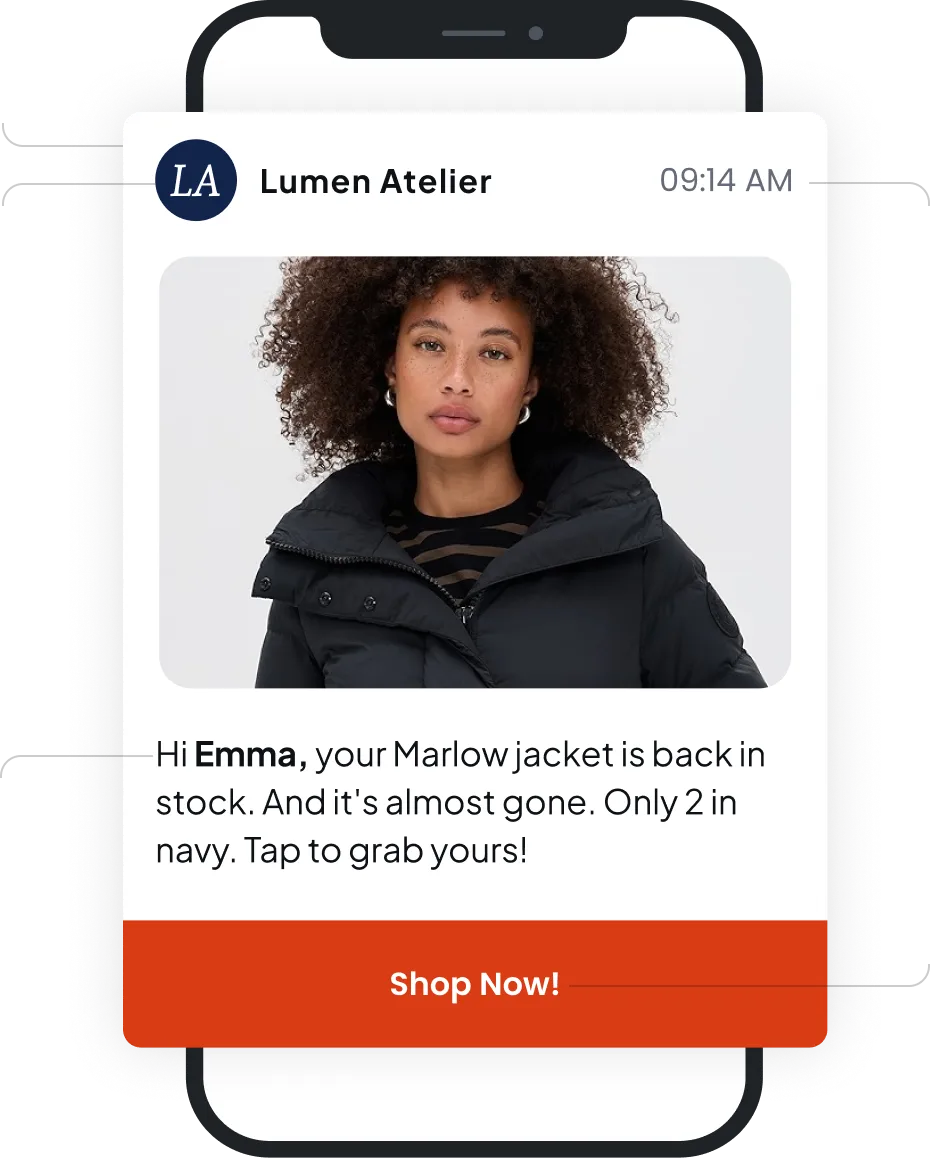
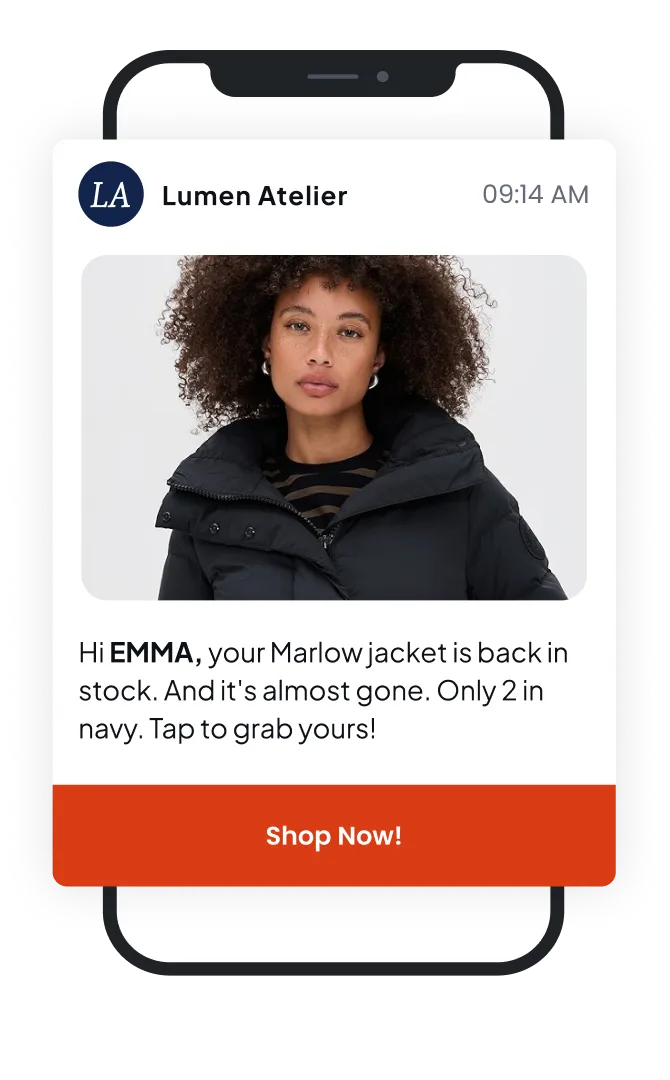
9:14 AM. Not 2 AM.

Send Intelligently picked 9:14 AM for Emma based on her historical open pattern. Quiet hours would have blocked a send between her set 10 PM–8 AM window — the engine respected both.

Send Intelligently

AI picks the best send time for each user individually, based on their personal engagement patterns, and refines it as their behaviour changes.

Quiet hours & frequency caps

One frequency cap across every campaign, not per-campaign, so that three teams can’t hit the same user in one morning. Quiet hours hold no matter who’s sending. Users stop muting you.

Read More

+3.2×

CTR on intelligently-timed vs. fixed-time sends

Why this user, this moment?

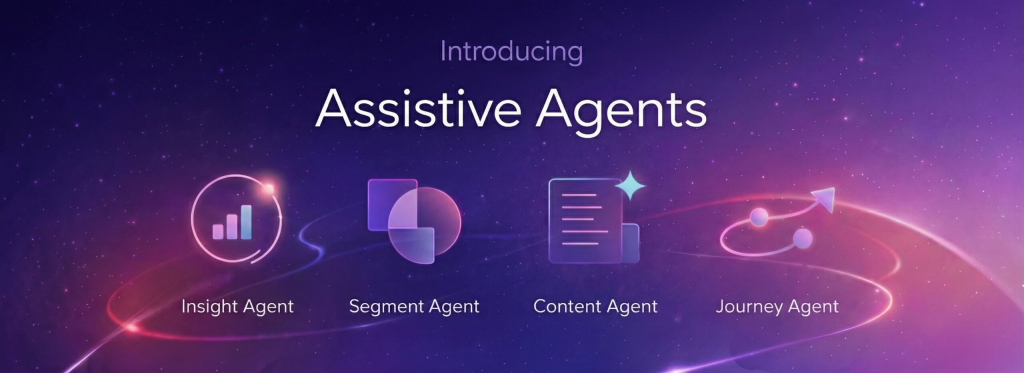
Emma landed in this push because Predictive Segmentation flagged her as “most likely to convert” after her cart abandon. The Segment Agent built the audience from a natural-language prompt (“users who abandoned cart in the last 48h with engagement score above 70”).

Predictive Segmentation

Scores every user on likelihood to convert, churn, or engage so that campaigns target the people most likely to act, not everyone.

Segment Agent

Describe the segment in plain English. The AI translates it into rules and events for you.

01/05

The sender is verified.

The Lumen Atelier icon rendered because the app is properly configured with WebEngage’s SDK and verified with Apple Push Notification service and Firebase Cloud Messaging. The user sees your brand the instant the push lands, not a generic “Notification” label, which is the difference between a tap and a swipe-away.

SDK & Push Setup

One SDK covers iOS, Android, React Native, Flutter, and Cordova. Your eng team integrates once; no separate vendor for hybrid apps, no per-platform rework when you ship a new feature.

Verified sender identity

Your app icon, name, and sound show up on every push, exactly as you set them. Users know it’s you the second the notification lands.

The copy wrote itself.

The marketer told the Content Agent the goal was “win back cart abandoner, personalized, urgent but not pushy.” It produced three push copy variants on-brand. This one won the A/B test. The rich push image was picked by the Recommendation Engine — the exact SKU she abandoned.

Content Agent

Tell it the goal in one line. You get on-brand push copy in seconds. No copywriter brief, no waiting on creative.

Rich push

Add images, video, or carousels to any push as a visual push gets tapped far more often than a text-only one. Works on iOS and Android.

Recommendation Engine

Picks the product each user is most likely to buy from your live catalog. The same engine runs across push, email, and in-app. Set it up once, not per channel.

The tap isn't the end.

When Emma taps the push, deep linking takes her straight to the Marlow Jacket product page — not the app homepage. She then enters a Contextual Journey branch that can run concurrently for each of her abandoned cart events, not just once per user. If she doesn’t complete, an in-app message appears on her next session.

Deep linking

Taps land users on the exact product or screen, not the app homepage. And every tap is tracked back to the campaign that sent them.

Contextual Journeys

If a user abandons cart three times, the recovery flow runs three times i.e. once per event. Most platforms only let someone enter a journey once, ever.

05/05

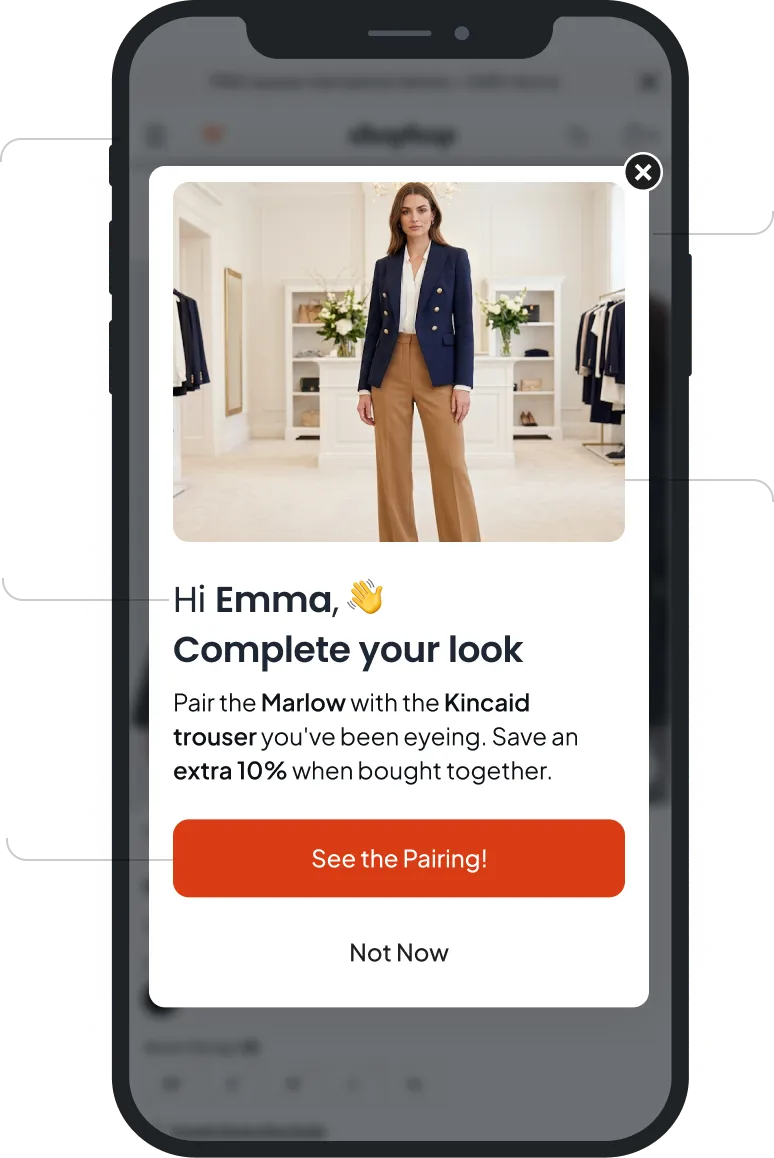
Targeted to this screen.

The in-app only shows on the Wardrobe screen, not on Search or Settings. Screen-level targeting means the message lands in context — product recommendations next to products, not in your checkout flow.

Screen-level targeting

Pick exactly which screens a message can appear on. A product offer on the product screen, not in the middle of someone’s checkout.

Native SDK integration

Every app screen is tracked automatically once the SDK is in. New screens your team ships later get tracked too so no eng ticket every time you want to target one.

Why show it now?

Emma triggered this in-app by viewing the Marlow product page while it was in her cart. The in-app engine listened for a specific event combination and fired the modal at exactly the right moment of intent. A different user viewing the same page without a cart context would have seen nothing.

Event-triggered in-app

Show a modal or banner the second a user does something specific, like viewing a product that’s already in their cart. You catch intent in the moment, not hours later in an email.

Live Segmentation

Segments update on every action a user takes, not on last night’s batch refresh. What they see is based on what they’re doing right now, not what they did yesterday.

74%

Avg in-app message open rate vs. 25% for email

01/05

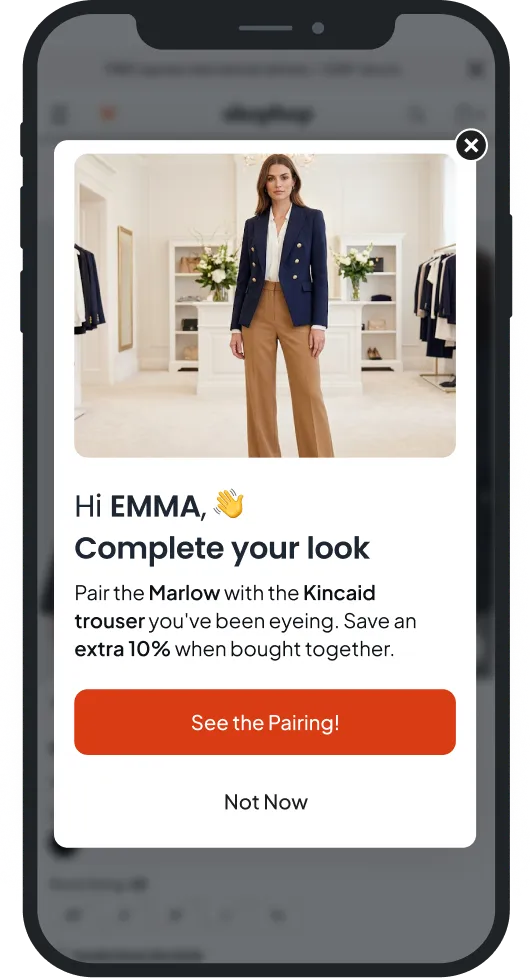
The visual is AI-generated.

The hero image was produced by the Content Agent from a product reference and brand guidelines. The Recommendation Engine chose the exact two items shown (the ones most complementary to her abandoned cart). No designer ticket, no image asset to brief.

Content Agent

Describe what you need whether it’s a hero image, a banner, or the headline. On-brand assets come back in seconds, no designer ticket and no agency brief.

Recommendation Engine

Picks the product each user is most likely to buy from your live catalog. The same engine runs across push, email, and in-app. Set it up once, not per channel.

Personalized down to the pairing

The headline pulls Emma’s first name from her profile. The body references the Marlow she abandoned, then recommends the Kincaid trouser the Recommendation Engine picked as her best pairing. Three personalization layers- name, behavior, and live catalog logic, assembled the moment the modal renders.

Derived Attributes

Auto-refreshing user attributes from your events and profile data.

Read More

Dynamic Merge Tags

Drop any user data or recent behavior into copy like name, last product viewed, points balance, and it fills in per person, the moment the message renders.

Dismiss or act — both count.

If Emma taps “See the pairing,” a Contextual Journey fires — she’s sent to the bundle page and added to a post-view flow. If she taps “Not now,” that’s also an event — suppressing this specific in-app for 72 hours and noting the soft signal for the Predictive Segmentation model.

Contextual Journeys

Branch on tap, dismiss, or timeout — different flows per action.

Read More

Full-funnel attribution

Both positive and negative actions feed back into models.

Read More

05/05

Audience picked per render.

Every time this screen loads, Live Segments re-check which audiences Emma belongs to. All event-driven, not nightly batches. Predictive Segmentation layers her propensity on top (Most, Moderately, or Least Likely to convert). A user two minutes deeper in the session may match a different segment, and see a different card.

Live Segmentation

Segment membership updates the moment a user does something like buys, taps, dwells. The update is totally event-driven, and not a scheduled refresh.

Predictive Segmentation

AI predicts who is likely to take a future action like purchase, churn, convert, and sorts them into Most, Moderately, and Least Likely groups.

Why this slot?

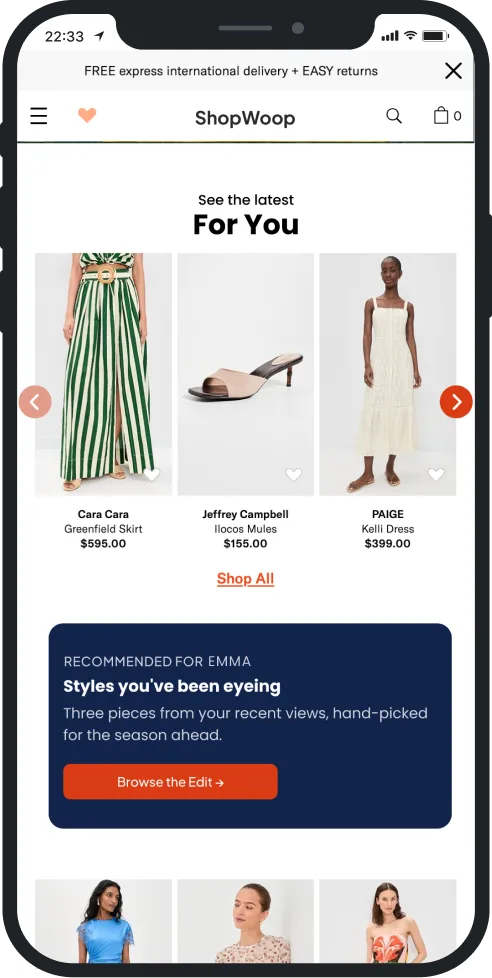
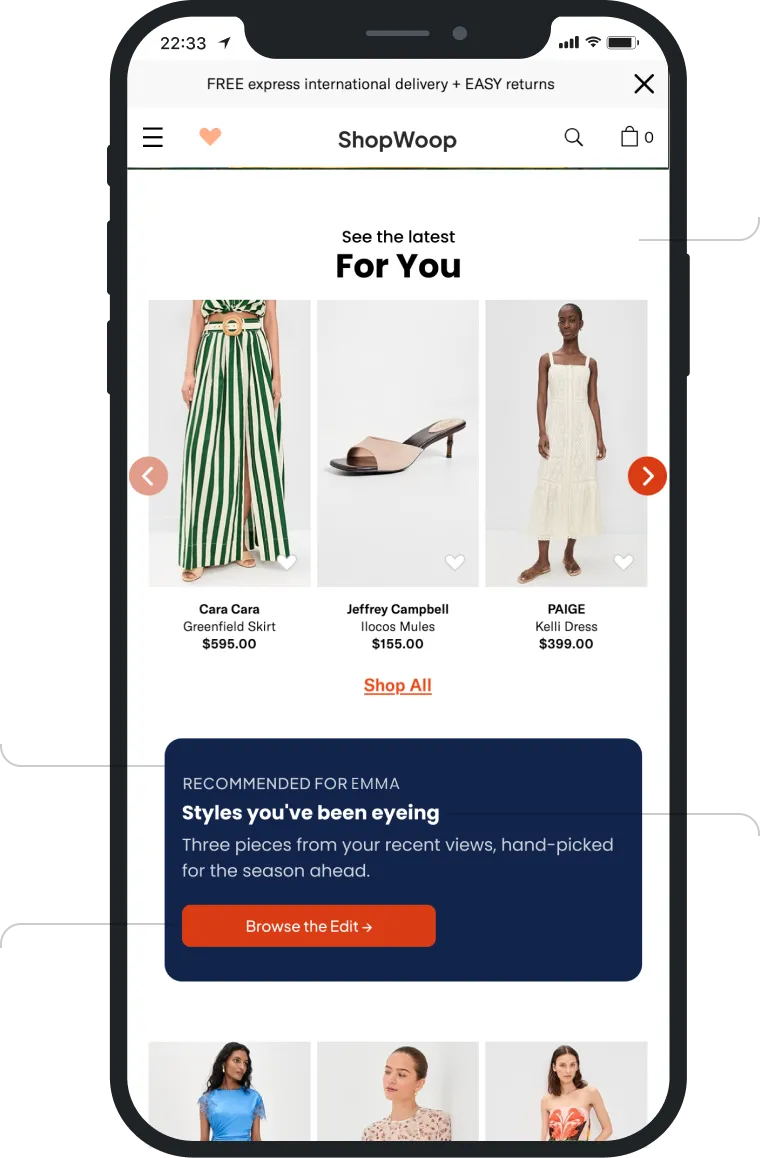
This card renders inside the “For you” feed; a slot your app explicitly reserved via the WebEngage SDK. In-line doesn’t interrupt; it lives inside your app’s UI. The slot can be anywhere – a feed position, a category page, a cart upsell rail.

In-line SDK slots

Reserve specific positions in your app where WebEngage can render content like feed slots, category banners, cart-page rails. Native iOS and Android only.

Template library

Pre-built Banner and Text templates with full styling control, or build a Custom Layout to match your native UI exactly.

01/04

Content is affinity-matched.

This card was assembled for Emma. The Affinity Function spotted her favourite category: navy outerwear. A Collection filtered the catalog to that and to recently restocked items. The Recommendation Engine picked three from what was left. The next user gets a different card entirely.

Affinity Function

Identifies each user’s top preference (favourite category, genre, cuisine) from their activity history, and stores them as an attribute that you can use for segmentation and recommendations.

Collections

Filters your catalog in real time by location, stock, price, season, and more. Same recommendation strategy, different output per user, per moment.

Recommendation Engine

Picks the product each user is most likely to buy from your live catalog. The same engine runs across push, email, and in-app. Set it up once, not per channel.

+62%

CTR on affinity-matched in-line vs. generic recommendations

The tap lands in flow.

Tapping “Browse the edit” deep-links directly into a filtered catalog view — not a generic homepage. That view is itself a journey node: if she browses but doesn’t buy, she enters the re-engagement flow. If she purchases, she enters the post-purchase onboarding.

Deep linking

Tap-to-filtered-view, tap-to-flow-step, full-context handoff.

Read More

Contextual Journeys

In-line taps feed into the same journey logic as push and in-app.

Read More

04/04