
We are introducing a new and an all powerful successor to the our role based access controls (RBAC) in WebEngage – its enterprise grade variant based on object based access controls (OBAC).
Here’s some context.
With RBAC, you decide what each person can do on WebEngage. For instance, one marketer might only create campaigns, while another can also export lists, build segments, or configure dashboards. Each capability is a permission you grant or restrict. We’ve supported this for a long time.
But here’s what RBAC can’t do. Your enterprise serves customers in, say, Germany and Brazil and marketing teams in both regions use WebEngage to drive engagement and retention. Now, your team members in Germany and Brazil should be able to create segments, launch campaigns, build funnels, and analyse data streams alike. They need the same capabilities. However, they need to be operating ONLY on users who are local to them– for reasons mandated by compliance, business need, or data governance.
Enterprises that use WebEngage across different geographies, or have multiple lines of business, or have their operating teams split by brands or functions, have often asked us how to separate their customer data so that each of these teams only sees and acts on what’s relevant to them. Today, we oblige.
Say hello to Teams – our new Object Based Access Control (OBAC)
With Teams, you define data boundaries for your organisation. Think of Teams as a persistent filter that defines which users data a team member can see while using different sections of the WebEngage Dashboard.
For example, you could create a Team called “Germany Premium” that only includes users where Country is Germany and their Tier is Premium. Once you assign this Team to a marketer, their ENTIRE WebEngage Dashboard experience changes. They’ll only see users, segments, campaigns, analytics, that fall within that boundary definition.
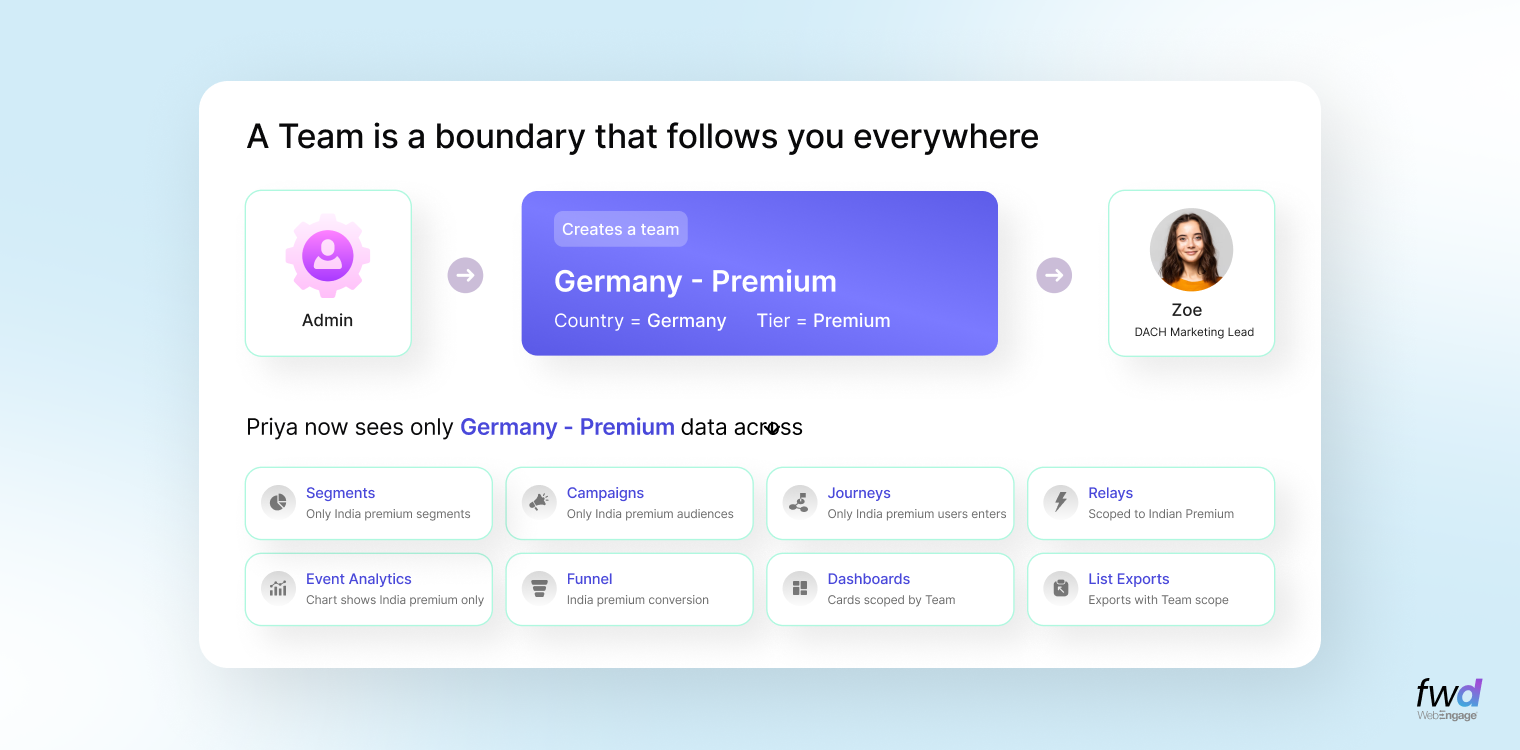
The keyword here is ENTIRE. This isn’t a filter they applies on one screen. It follows them everywhere (Segments, Campaigns, Journeys, Relays, Analytics etc). They don’t toggle anything on. They don’t remember to select a filter. Thanks to Teams, they just log in, and see the right data that’s relevant to them, in every module, every time. Thanks to Object Based Access Controls (OBAC), you don’t have to worry about ensuring these filters get applied everywhere to keep your insights and execution clean.
How to set up Teams?
1. Create a Team (the Object in OBAC)
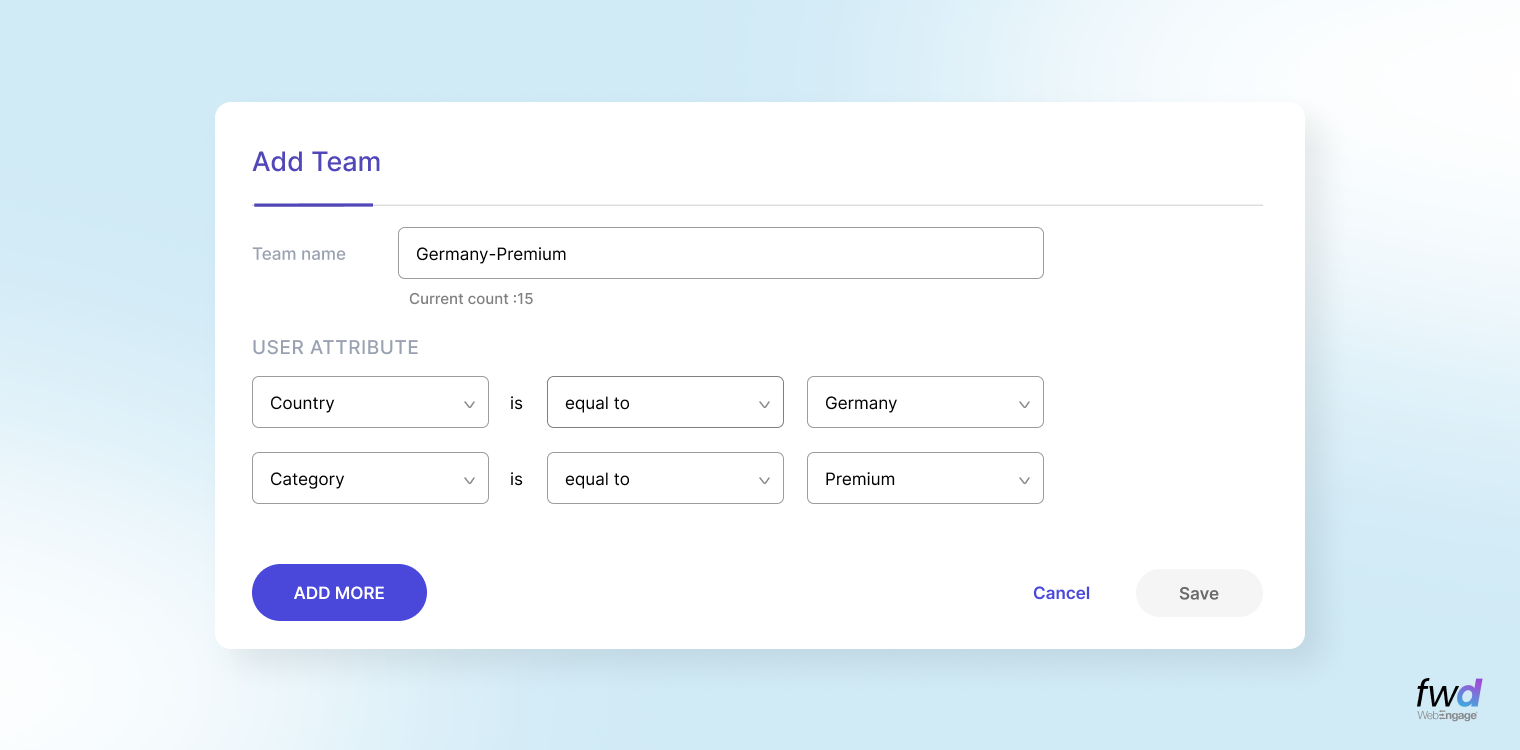
Navigate to Settings -> Team and click the + icon. Give it a name, then define the criteria using custom user attributes. You can combine multiple attributes with AND conditions. For example: Country = Germany AND Category = Premium.

2. Assign Teams to your team members (the Access Controls in OBAC)
Go to the Settings -> Team section, locate the user, click the three-dot menu -> Edit, and assign the relevant Teams.
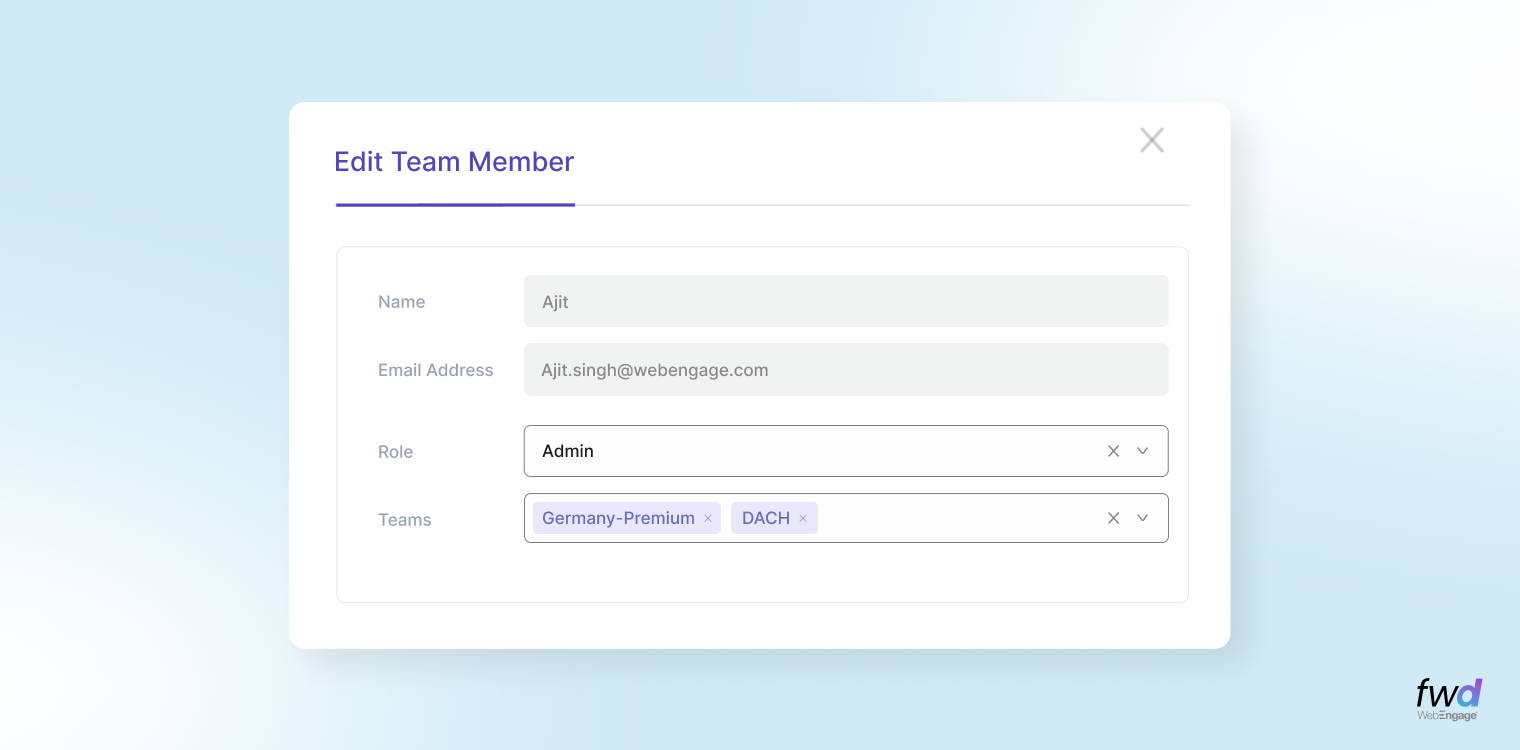
A user can be assigned to multiple Teams. If they are not assigned any Team, they see all the data. So nothing changes for your existing team members until you explicitly set up their Teams. Our Object Based Access Controls (OBAC) are dynamic in implementation. So, in the example shown above – if a customers’ Category changes to ‘Budget’ from ‘Premium’ on later day, this team member won’t see their data anymore.
3. That’s it! Use the platform normally
The Teams filter is now active across the entire platform. Every module, from Segments to Analytics, will automatically scope data to the assigned Team(s). Your colleagues don’t need to do or set up anything at their end.
How Teams work?
Once you understand this, everything else clicks. Teams governs your platform in two ways:
Open a listing page, chart, or dashboard — the Team has already filtered what you see. The boundary is applied automatically.
Create a segment, campaign, or funnel — your scope is automatically restricted and locked within your Team’s boundary.
Let’s walk you through each.
How Teams works when your team member is browsing through their dashboard
Teams ensure that what you see is already scoped to you, without you having to explicity state that anywhere. Let’s see some examples across different modules.
1. Analytics
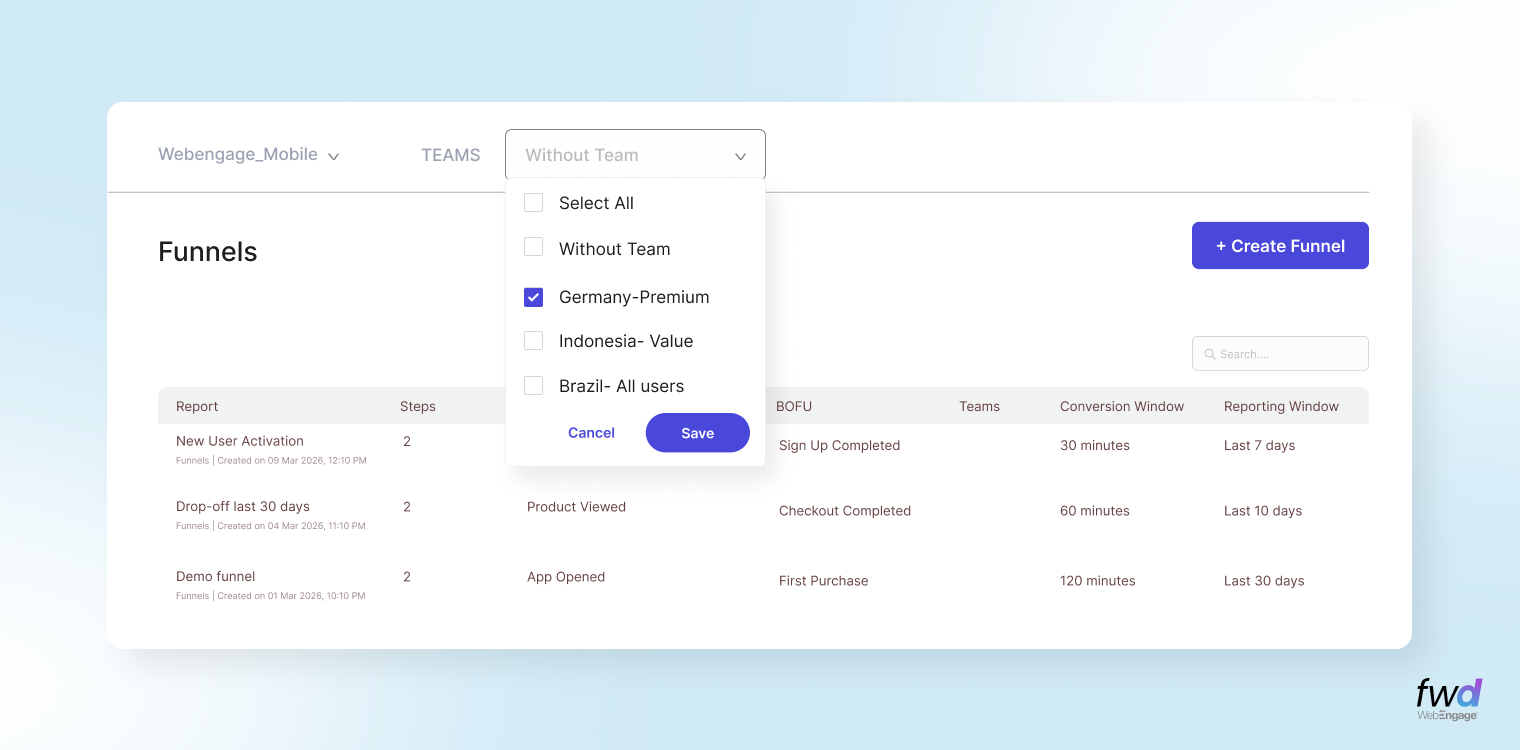
In the Analytics modules i.e. Event, Path, RFM, Funnel, and Cohort, you will see only those line items which are assigned to your Team. If you are assigned multiple Teams, you will see a Teams dropdown in the query bar where you can select the Team whose data you want to view.
Suppose you are in Funnels module, you can select a Team, and the list automatically shows only those funnels that belong to the Team you have selected.
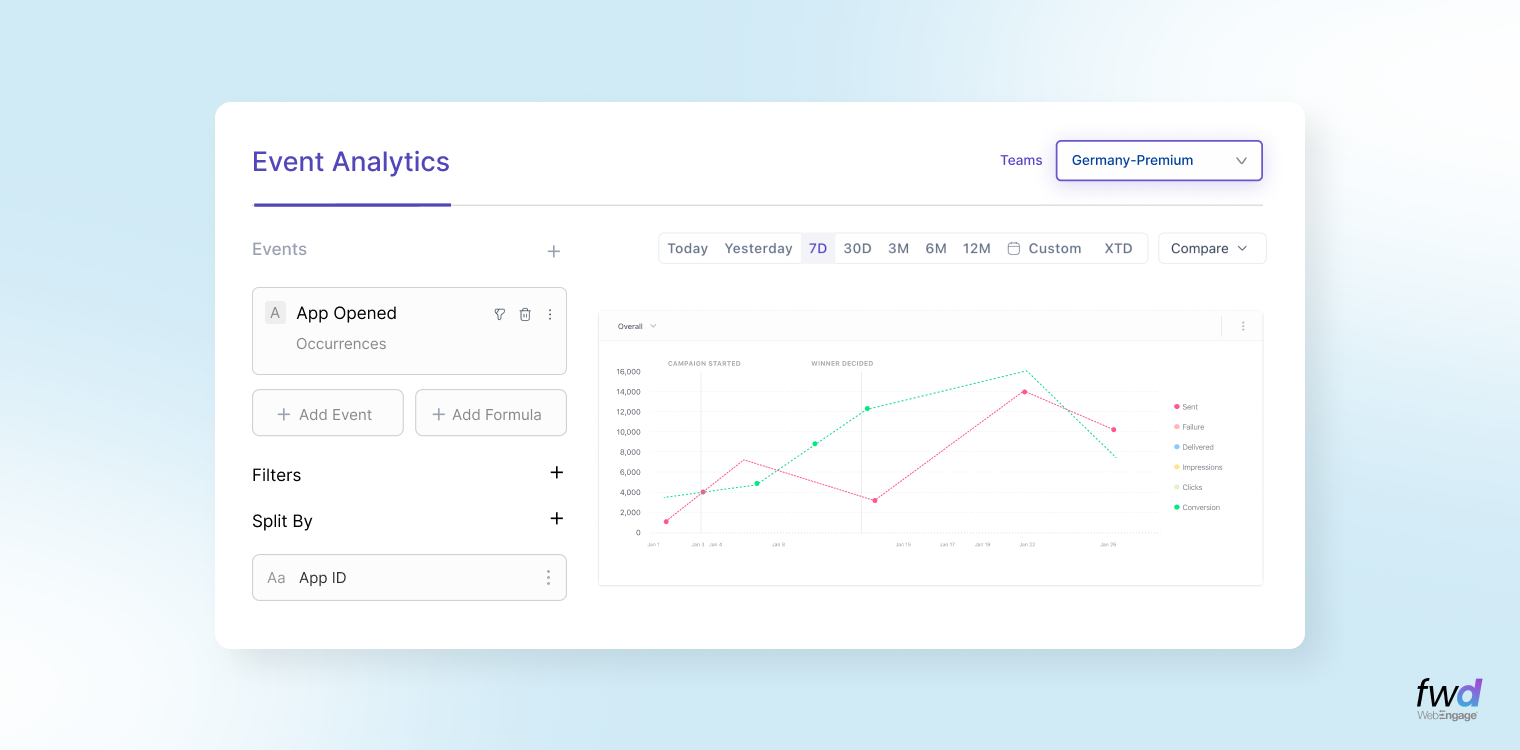
The data follows your Team selection in real time. If you’re in Event Analytics, for instance, you can change the event, adjust the split-by, switch Time range whatever, the Team filter stays active throughout. However, switch to a different Team, and the entire chart recalculates instantly to reflect that Team’s data. No page reload, no re-querying. Just pick a Team and the numbers update.
2. Listing Pages
All our listing pages – Segments, Lists, Campaigns, Funnels, Journeys, now have a SELECT Team dropdown at the top. Pick a Team, and the page immediately shows only items created within that Team. Since you can be assigned to multiple Teams, you can switch between them to explore different sets.
How Teams works when your team member is creating in their dashboard
Now when you are creating something, say a segment, a campaign, a journey, a funnel, Teams ensures that your audience is automatically limited to users within your Team. Anything you create inherits the team filter in audience selection by default.
1. Live Segments & Lists
When you create a new segment within a Team, the Team’s criteria gets applied as an implicit filter automatically. You don’t need to manually add “Country = Germany & Category= Premium” to your segment rules every time. Teams does it for you. Your segment rules are layered on top of the Team’s boundary, so you’re always working within the right user base without thinking about it.
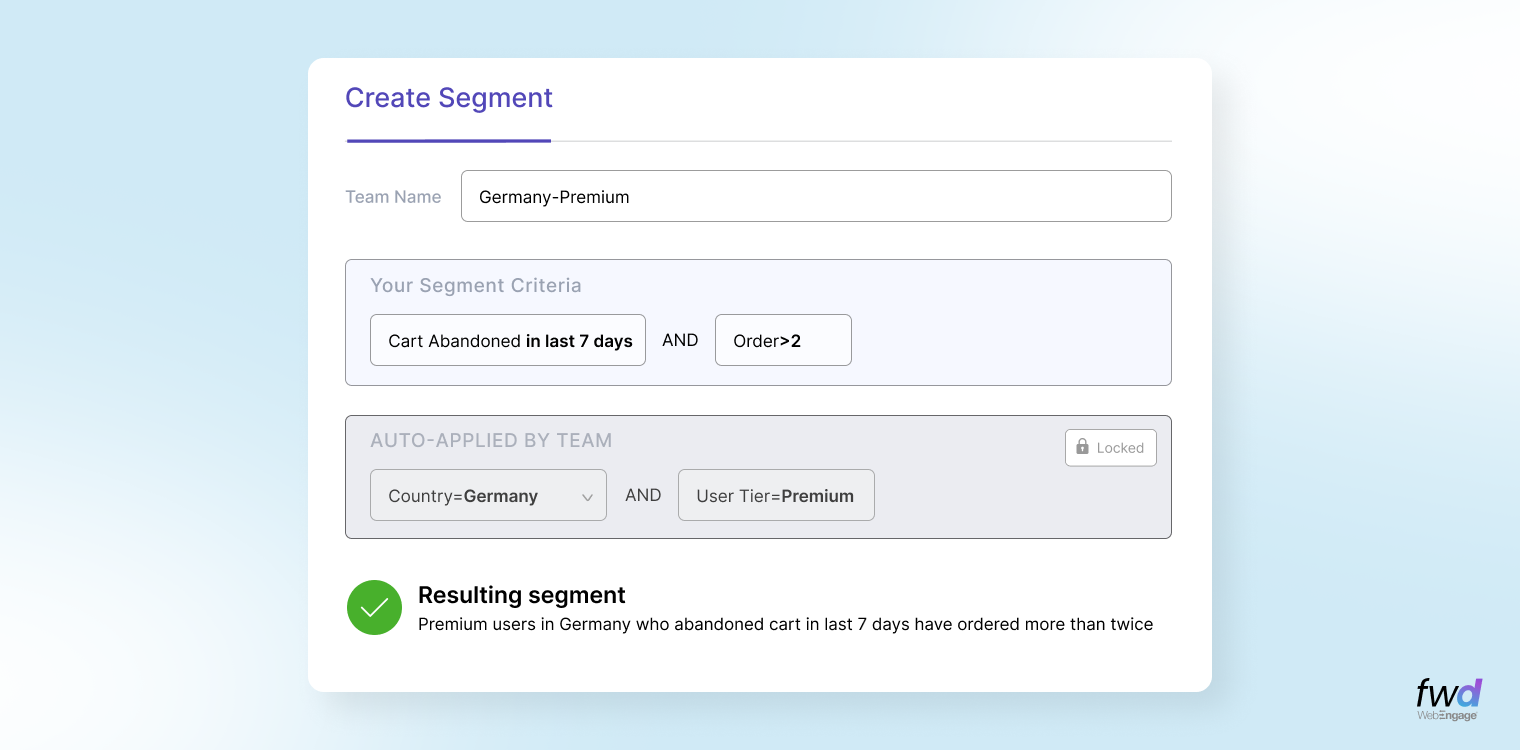
The same applies to Lists or other forms of Segments you create inside WebEngage.
2. Campaigns
When you create a campaign within a Team, the audience is automatically restricted. The “Send to” dropdown will only show Segments and Lists that fall within your Team’s scope. Even if a marketer selects “All Users”, the Team ensures only users within their boundary are reached.
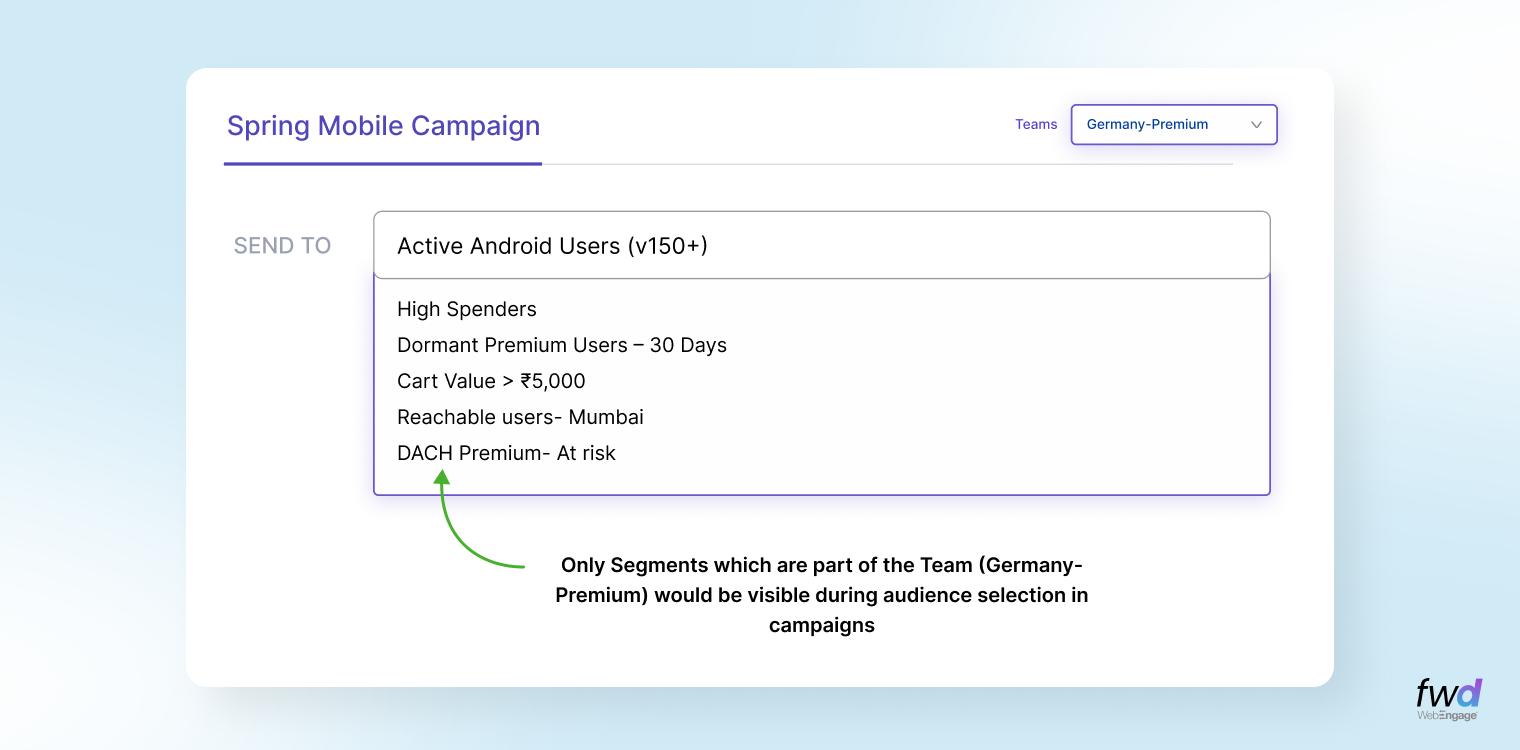
This means it’s structurally impossible for your Germany team member to accidentally target Brazil’s users.
3. Journeys & Relays
When you create a Journey with an applied Team construct, the audience inherits the Team’s filter as an implicit criteria just like Segments. The Journey will only target users who match the View’s definition. Relays, too, follow the same construct. Select your Team within the Relay configuration, and the targeting criteria is automatically applied.
What does this mean for you?
Most people will use Teams to keep their data clean such that German team sees German users, Brand A works within Brand A’s audience, the team operating on Premium Tier customers only never wanders into the budget segment territory and so on.
With Teams, we’re giving you control over your data without adding complexity. When a new marketer joins a regional team, there’s nothing to configure and no filters to remember. They simply log in and the right data is just there. When your Brazil team runs a funnel analysis, they’re looking at numbers that reflect only their market. When exported lists automatically carry the Team’s scope, every downstream system like your CRM, data warehouse, ad platforms, receives clean data without anyone manually filtering or verifying those first.
Teams was in BETA for sometime but is now generally available The underlying Object Based Access Controls (OBAC) will continue to evolve as newer use-cases emerge . If you wish to try it out, please talk to your Account Manager or Growth Consultant to get it activated.

Interested in keeping a track of all our major product releases and updates? We have created a FWD section just for you. Jump the queue with all that’s new at WebEngage! Stay ahead and march forward.